Service-smtp.eu can be configured as a send server in FileMaker Pro. Go to the Mail…
Save the SSL certificate in Outlook
This article details how to register the SSL certificate of service-smtp.fr in the certificate store so that Outlook does not ask at each launch if you want to use the SSL certificate provided by your SMTP account.
The SSL certificate is used for SSL and TLS connections. This is not necessary if you don’t use an encrypted connection or if you don’t use Outlook.
In Outlook
When Outlook asks you if you want to continue using this server, click “Show the Certificate.”
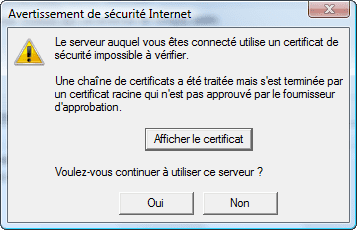
Click on the “Details” tab.
Then click “Copy in a file…”
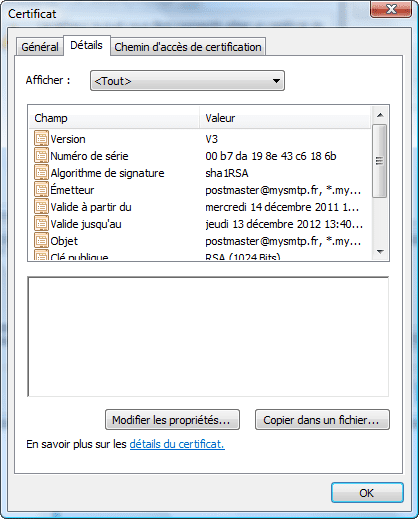
In the new window, click “Next.”
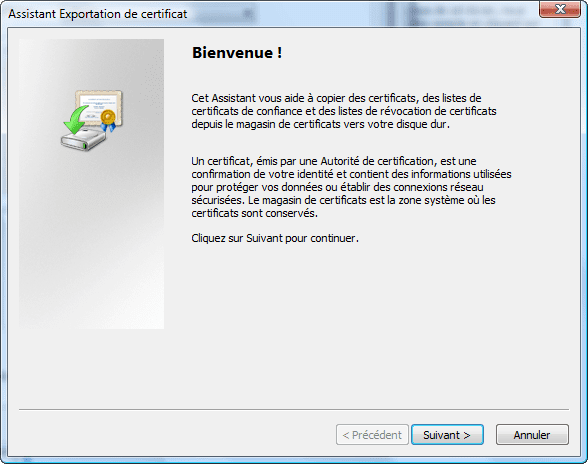
Select “Standard Encryption Message Syntax – PKCS Certificates #7 (.p7b).
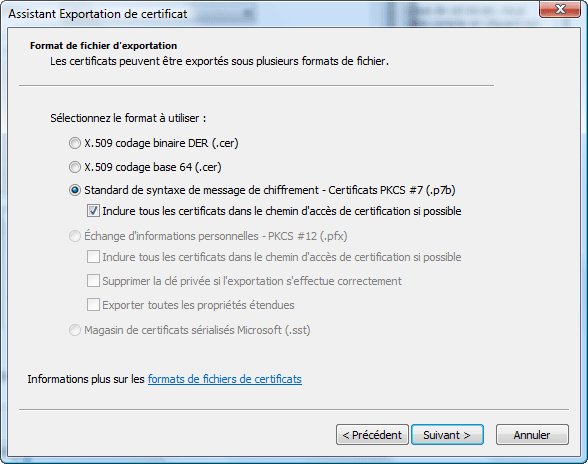
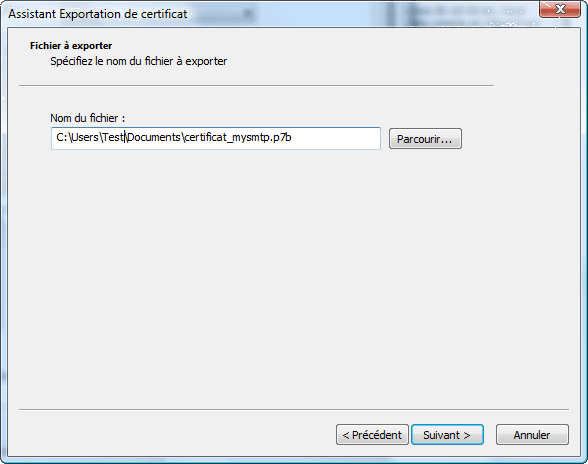
Choose where you want to save the file and click “Next.”
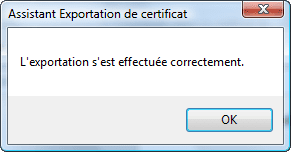
Close the confirmation window.
In Internet Explorer
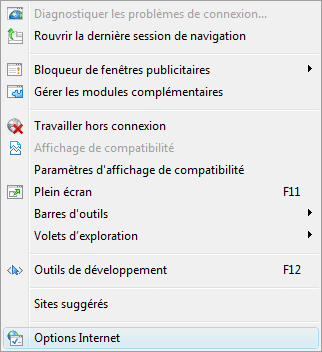
Go to the > “Internet Options Tools” menu.
Click the “Content” tab and then click the “Certificates” button.
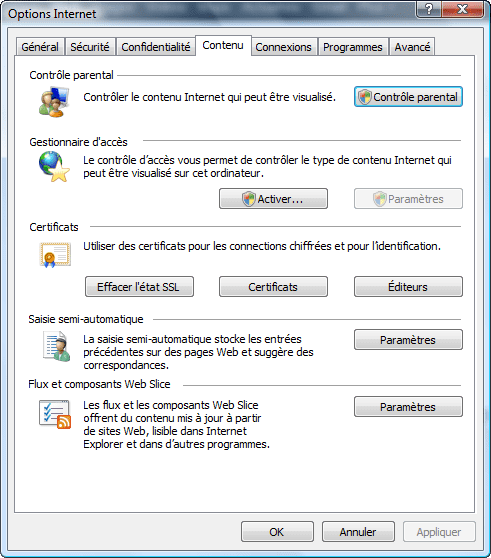
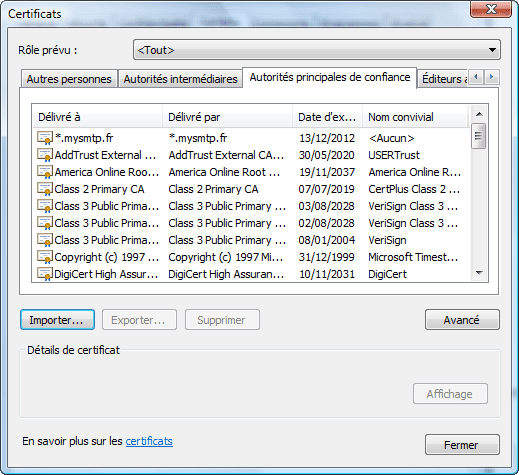
Click on the “Main Trusted Authorities” tab, then the “Import…” button
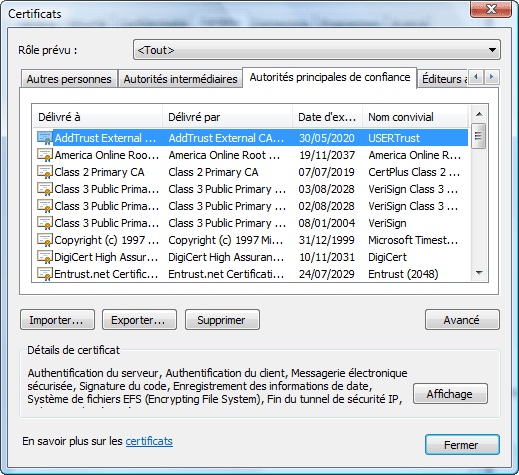
In the new window, click next.
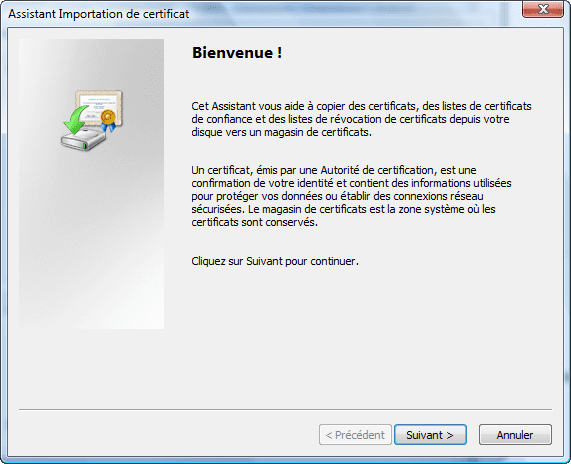
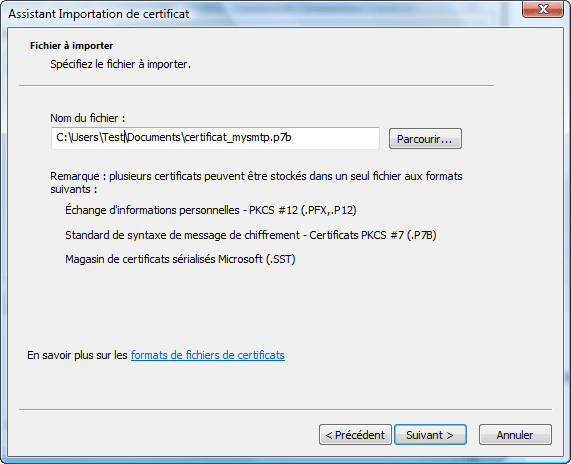
Select the previously saved file and click “Next.”
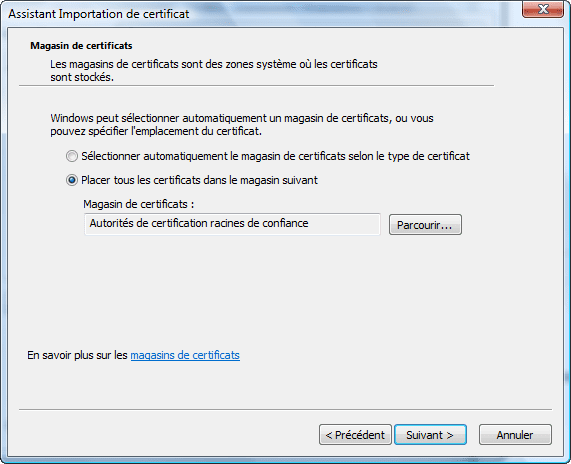
In the next window, select “Place all certificates in the following store: Trusted Roots Certification Authorities,” then click “Next.”
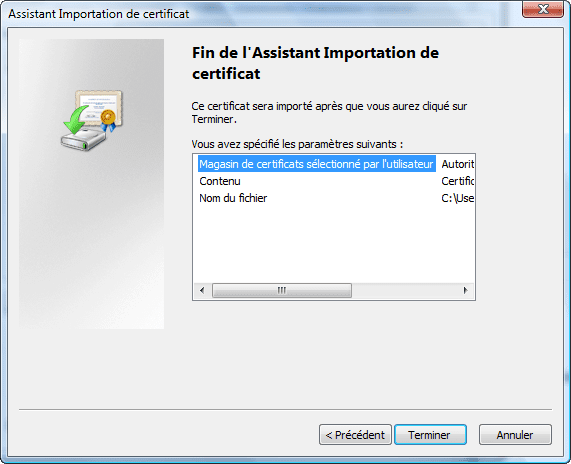
In the next window, click “Finish.”
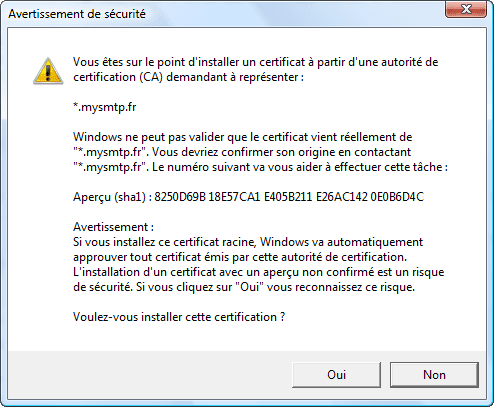
In the next window, confirm by clicking “Yes.”
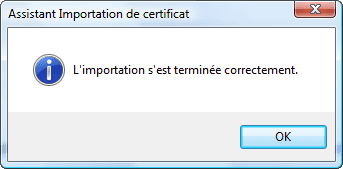
An alert will appear, confirming the import.
Check in the initial window, if “.mysmtp.fr” has been added to the list.
The procedure is over. Outlook will no longer ask for confirmation to use our SMTP servers.
Related Posts